Overview
The Mikuro Launcher is a replacement launcher for Torchlight II. Its core is the MIKURO X enhancement layer: one switch that folds a whole suite of upgrades vanilla never had (loot filter, save-crash fix, WASD movement…) into the game. It also does away with the official ModLauncher’s 10-mod cap (a limit that only exists on the launcher’s side; the engine has none): it scans .MOD file headers directly, generates a loading scheme and starts the game — stack as many mods as you like. DXVK compatibility, multiplayer servers and save tooling all live in the same window.
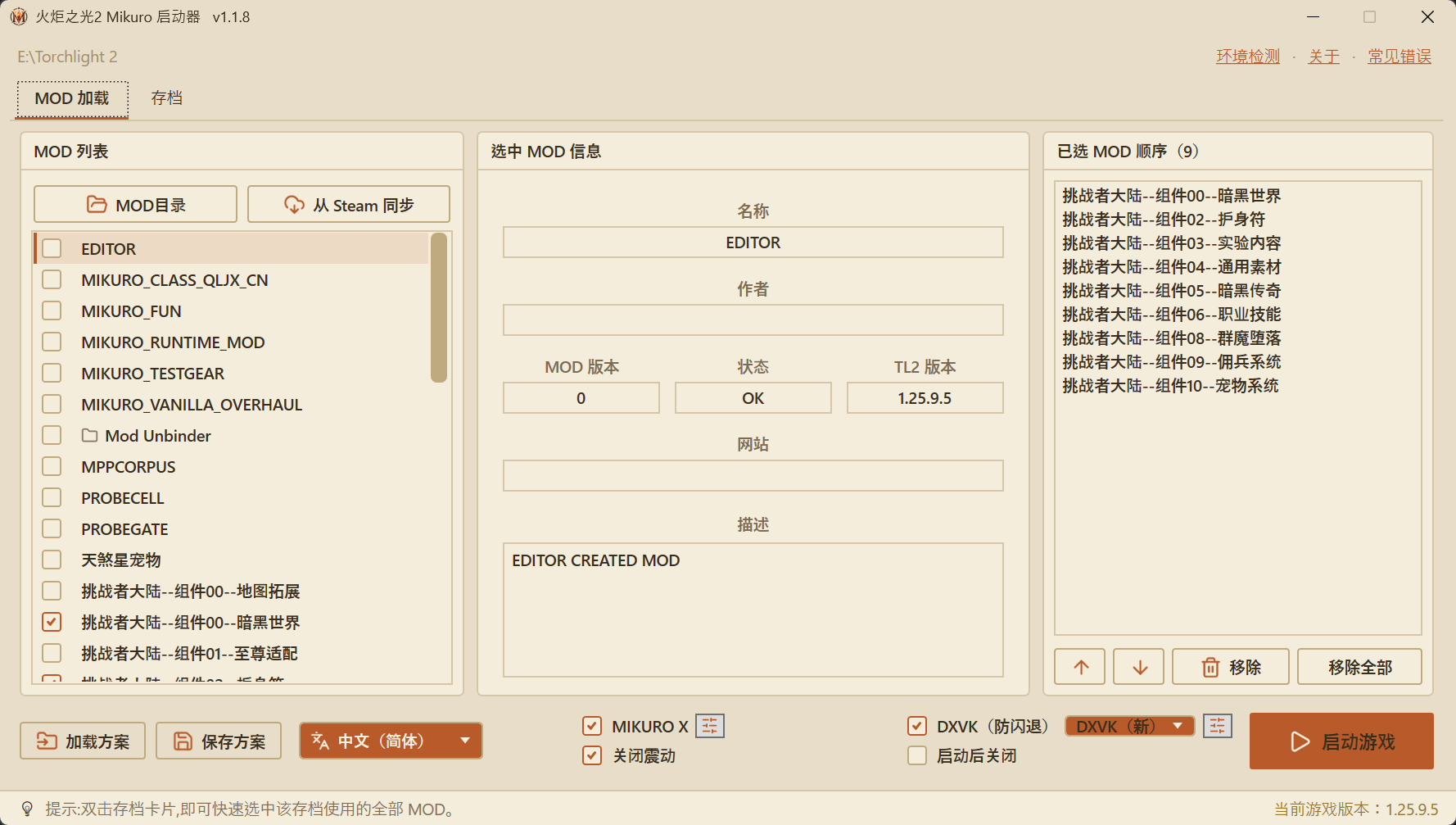
Ⅰ MIKURO X Enhancement Layer
One master switch ("MIKURO X") injects the MIKURO runtime into the game (installed as a d3d9.dll proxy, single-player / host only, language follows the UI). It brings a set of upgrades vanilla never had, without touching the save format:
- Loot filter: filter ground drops by rarity / type, auto-detects mod-defined rarities (EPIC / RUNE, etc.); quest items are never swallowed; rules adjustable in-game at any time.
- Keep-list (whitelist): when filtering in bulk by rarity, gems (
SOCKETABLE) and amulets (AMULET) are always kept by default, so “block blue / green” no longer collaterally destroysMAGIC SOCKETABLE(runes / gems) orMAGIC_AMULET(amulets); add your own keep entries by type or name, with keep-priority above a same-level blacklist (name > type > rarity > level); rescued items are flagged “Kept” in the panel. - Save / zone-transition crash fix: byte-level runtime repair of crashes triggered by oversized bags and stashes when saving, loading or changing zones. Fail-safe by design and on by default — any anomaly falls back to vanilla behavior.
- Point-spending / socketing crash safeguard: crashes when spending points or socketing gems on passive-heavy classes (e.g. 狂热杀神, 独角兽) are now sealed off at the engine level — if an effect is destroyed mid stat-recompute, that entry counts as 0 and the recompute carries on instead of reading freed memory. Independent of any MOD: every class and MOD combination is covered; on healthy data it never fires and no value is affected.
- Multiplayer-safe: enhancements activate only in single-player or when you host, so they never break multiplayer validation.
The ⚙ options next to the master switch hold three advanced toggles, all gated by the MIKURO X master (with the master off, the sub-toggles do nothing):
- Allow >10 mods: lifts the engine’s 10-mod cap in memory; see “Unlimited Mod Loading” below.
- MIKURO Afdian Server: points the game at MIKURO’s own lobby (see Ⅴ).
- WASD movement: move with WASD instead of click-to-move; F6 toggles it in-game,
[]adjust step size. If you’ve bound skills to WASD, clear them in the game’s key settings first to avoid conflicts.
The layer also mounts a companion content MOD that adds Azure Lotus gems, sockets 5→10, Beast Taunt and more to the game; full mechanics and acquisition: MIKURO Runtime MOD.
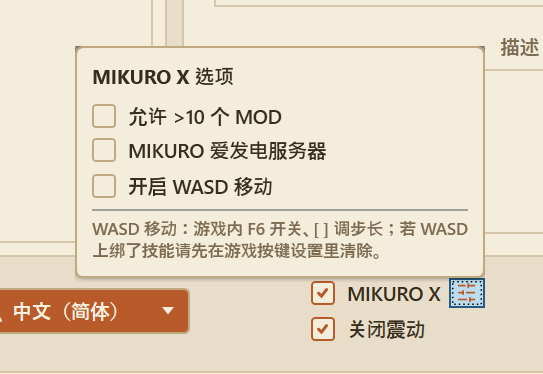
The enhancement layer and the loot filter live in the same `d3d9.dll` proxy; one switch turns on the whole suite. one toggle, the full kit
Ⅱ Unlimited Mod Loading
- No more 10-mod cap. Writes
modlauncher.schdirectly and starts the game withMODSCHEME=, bypassing the old launcher’s counter. A full Challenger Continent stack plus other mods is no problem. - Past 10: lifted in memory, exe untouched. Selecting and ordering has no cap; to actually load more than 10 mods at once, tick “Allow >10 mods” in the MIKURO X options — the launcher starts the game suspended, lifts the engine’s 10-mod cap in memory before any game code runs, then resumes. The game exe file is never modified.
- Drag to reorder: order is priority. The “selected mods” panel on the right is drag-sortable; Torchlight II’s override rule is first-loaded wins, so mods higher in the list override those below.
- Selection details at a glance. Name / author / mod version / game-version match / description, shown as soon as you select an entry.
- Save and load schemes. Keep favorite combinations as reusable
.schschemes. - No mods selected = vanilla launch. With nothing ticked, the button switches to “Launch Vanilla” and reads your vanilla characters from
save\; no accidental trips into the mod-save folder.
Ⅲ DXVK Graphics Compatibility
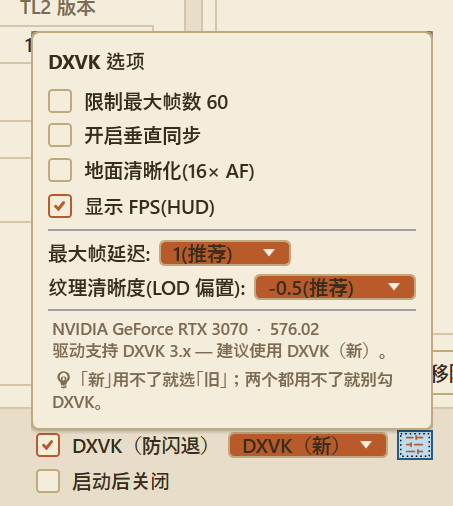
The launcher bundles DXVK (translates Direct3D 9 to Vulkan) behind a toggle simply labelled “DXVK” — it improves compatibility on modern GPUs and drivers, and comes with a set of image-quality and frame-rate knobs. It does two things for you:
- Dual builds, auto-picked by driver. Ships both DXVK 3.x (new) and 2.7.1 (legacy); the launcher reads your GPU driver version and recommends one. Recent NVIDIA drivers get “new”, older ones fall back to “legacy”.
- Optional quality knobs. 60 FPS cap, v-sync, ground texture sharpening (16× AF), FPS display, max frame latency, texture LOD bias, all with recommended values. The legacy build exposes just the frame cap and v-sync.
- Downgrade guidance built in. The dialog itself says: if “new” fails try “legacy”; if both fail, leave DXVK off.
Ⅳ Save Tools
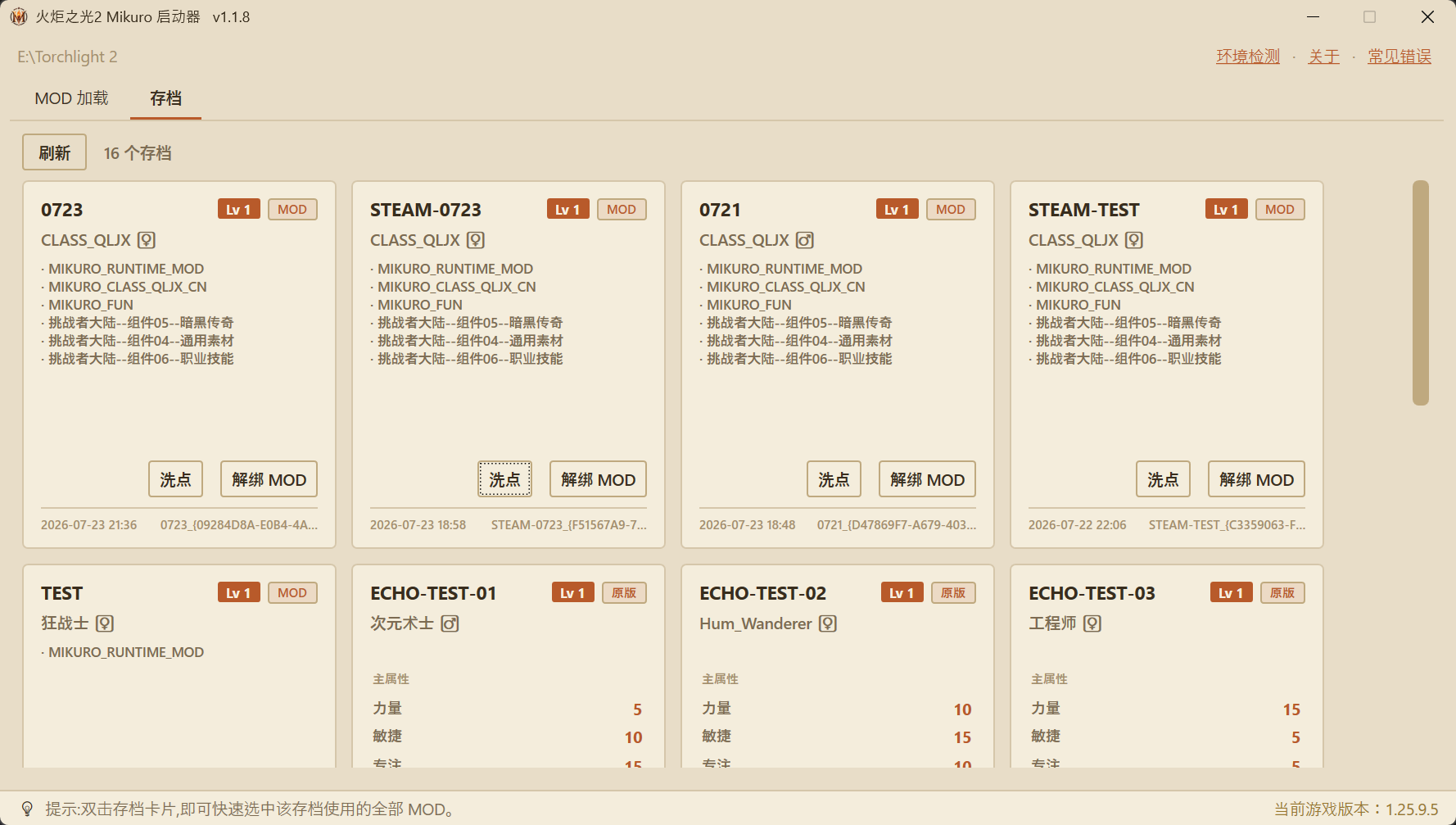
The “Saves” tab turns the characters in save\ and modsave\ into cards, with two safe save tools: respec and unbind.
- Everything at a glance. Each card shows character name, level, class (with gender), vanilla / mod badge, and which mods the save uses (attributed automatically); vanilla characters list their core stats instead.
- Double-click to select the save’s mods. Double-click any save card and the launcher ticks that save’s recorded mods in their original order and jumps back to the loading tab — no more guessing what you had installed.
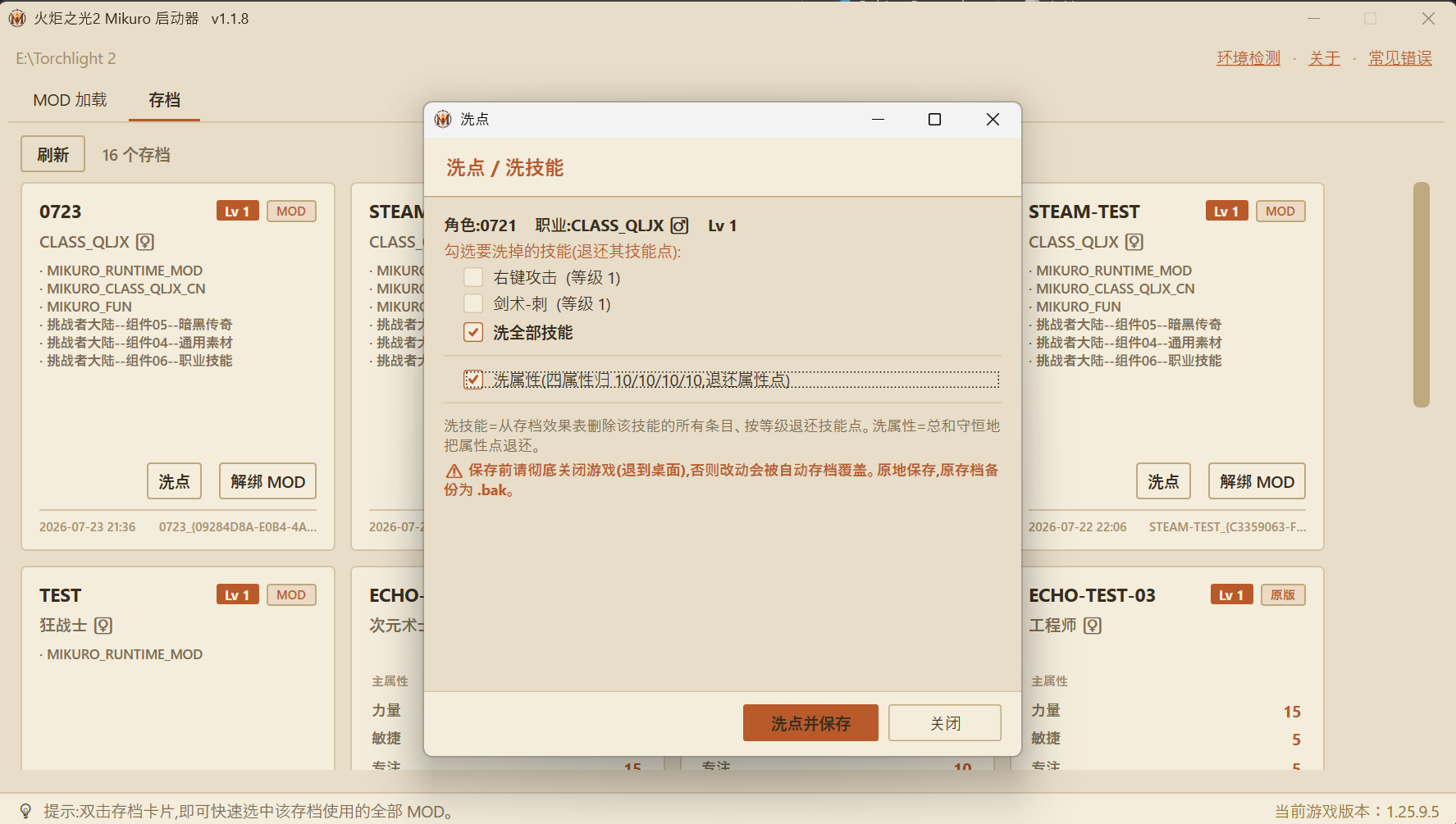
Respec skills & stats. The “Respec” button on each card opens a refund panel: refund skill points per-skill or all at once (removes that skill’s entries from the save’s effect table and refunds points by level), and optionally reset stats (four attributes back to 10/10/10/10, points refunded conservatively). Saved in place, with an automatic .bak backup of the original.
Before saving a respec, fully quit the game (back to desktop), or the game's autosave will overwrite your changes. the panel says so too
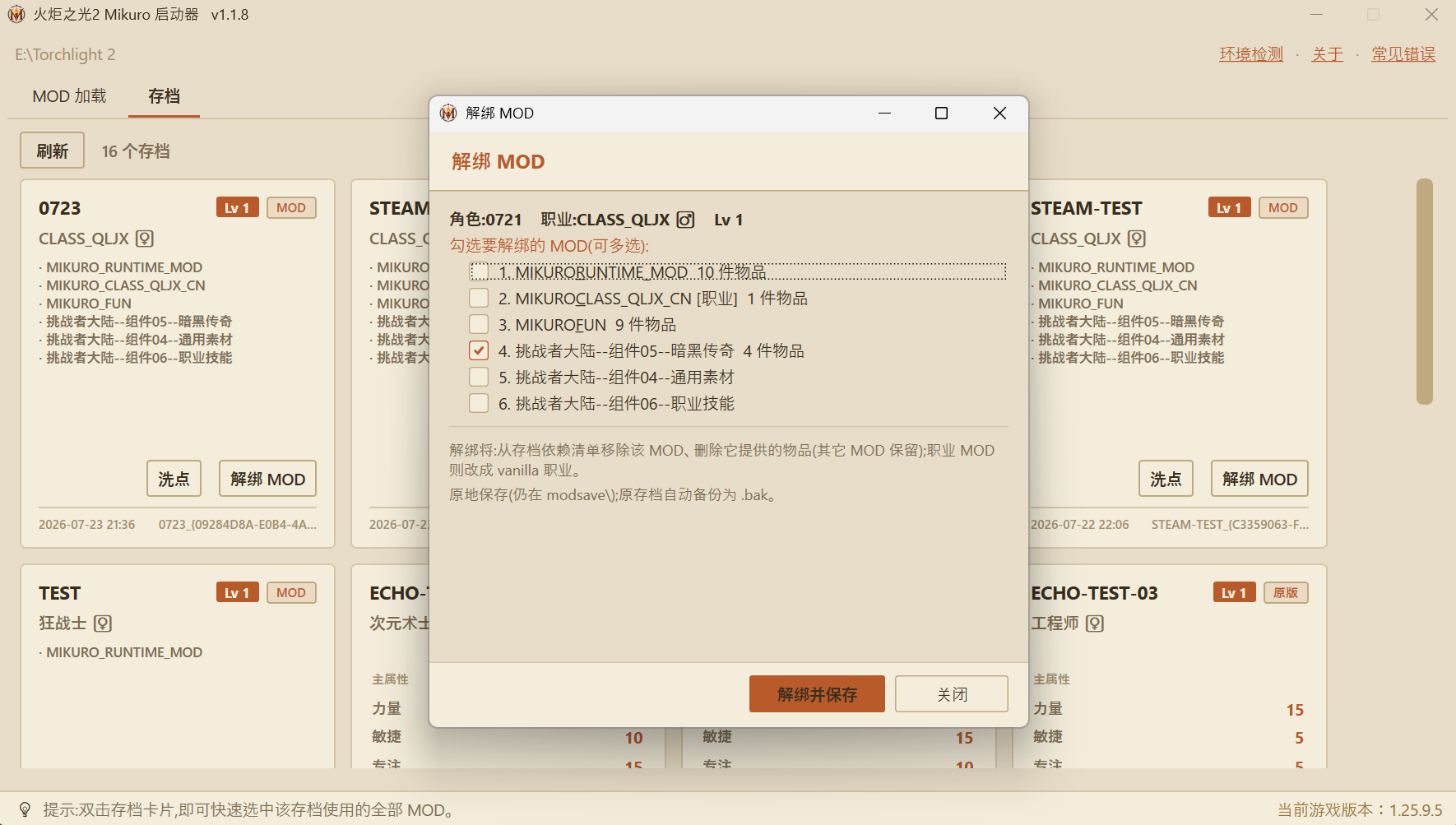
Precise per-mod unbinding. Want to drop a mod without junking the save? “Unbind mods” lists every mod the save carries and how many items each provides, multi-select; unbinding removes that mod from the save’s dependency list and deletes the items it provided (other mods’ items are kept). Only when you unbind the mod that actually provides the class are you asked to pick a vanilla replacement — removing ordinary content mods leaves the class untouched. Written back to modsave\ in place with an automatic .bak.
Ⅴ Multiplayer: MIKURO Afdian Servers
The official lobby server is up and down these days, so MIKURO runs dedicated multiplayer servers for Afdian supporters. Tick “MIKURO Afdian Server” in the MIKURO X options and the launcher writes the lobby address (LOBBYHOST) into the game settings before starting — then just pick “Internet” in-game. No config files to edit by hand:
- Chinese UI → Guangzhou server, other languages → Australia server, chosen automatically by interface language.
- The address is written on every launch, which defeats Steam Cloud’s habit of reverting settings at startup and un-doing your lobby address.
Ⅵ Quality of Life
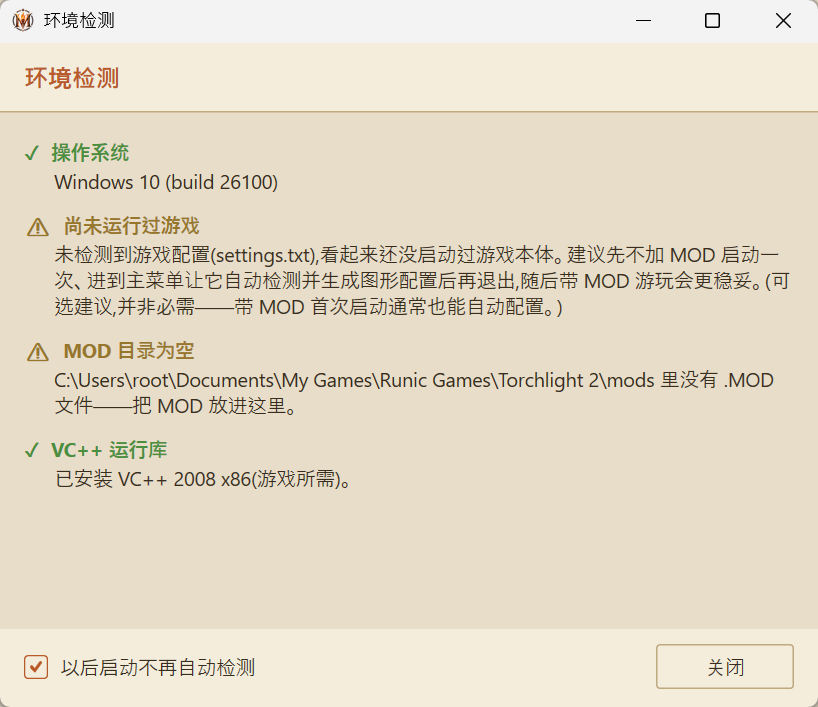
- Environment self-check on launch. Every start checks OS / first run / mod folder / VC++ runtime and only pops up when something’s wrong (all-green stays silent); “don’t auto-check again” is available, and the top-bar “Environment Check” runs it on demand.
- First-run notice. If it detects that the game profile (
settings.txt) has never been generated (i.e. the game itself has never been launched), it shows a gentle notice: consider running the game once without mods first, reach the main menu so it autodetects and writes a graphics profile, then quit. This is optional advice, not a requirement — by both reverse-engineering and a live test, the game autodetects a safe profile when the config is missing, and a first modded launch usually autoconfigures fine too. - Misplaced-mod detection. The check scans the usual wrong spots (game install dir, settings root, double-nested folders) and tells you where stray
.MODfiles should go. - VC++ runtime detection. The game needs VC++ 2008 x86; without it you get “msvcp90.dll not found” and no game. The self-check calls it out and tells you to install it.
- No camera shake. The “No shake” toggle on the main bar turns off camera shake (a vanilla option many new players can’t find), written into the game settings before launch.
- Overlay conflict warning. The loot filter and DXVK both hook D3D9; overlay / recording tools fighting for the same hook can stop the game from starting, so the launcher warns you to close them.
- Auto-update. Checks for new versions online and shows a banner up top.
Requirements
- Windows 10 / 11 only. The launcher is .NET-based and does not support Windows 7 / 8 (it fails right at startup).
- Requires the VC++ 2008 x86 runtime (a dependency of the game itself; the self-check will remind you).
- DXVK 3.x needs a reasonably recent GPU driver; on older drivers switch to “legacy” in the DXVK options.
Download & Updates
The launcher ships with the Challenger Continent mod pack; version history lives in the Mikuro Launcher changelog (Chinese).